

Appearance
Sales
Sales events are how you bring your animals to market in Frisbee. Build a sale, add the animals you're selling as lots, post updates for buyers, and share a public sale page — all from one place. As buyers browse, you'll see how your sale is performing in real time.
In this section
- Creating a sale event — set up a new auction or private sale.
- Adding & arranging sale lots — choose the animals you're selling and order them.
- Running and finishing a sale — start the event, record sold animals and close the sale.
- Posting sale updates — share inspection notes and announcements with buyers.
- Choosing what buyers see — control which breeding values appear on your public page.
- Sale analytics — track views, interest, and engagement.
How a sale fits together
The animals in a sale are your existing animal records, added as lots. Each sale has a buyer-facing public sale page that you can share or embed, where buyers browse the lots, favourite animals, and send you inquiries. While the sale is on, the Analytics tab shows you what's getting attention.
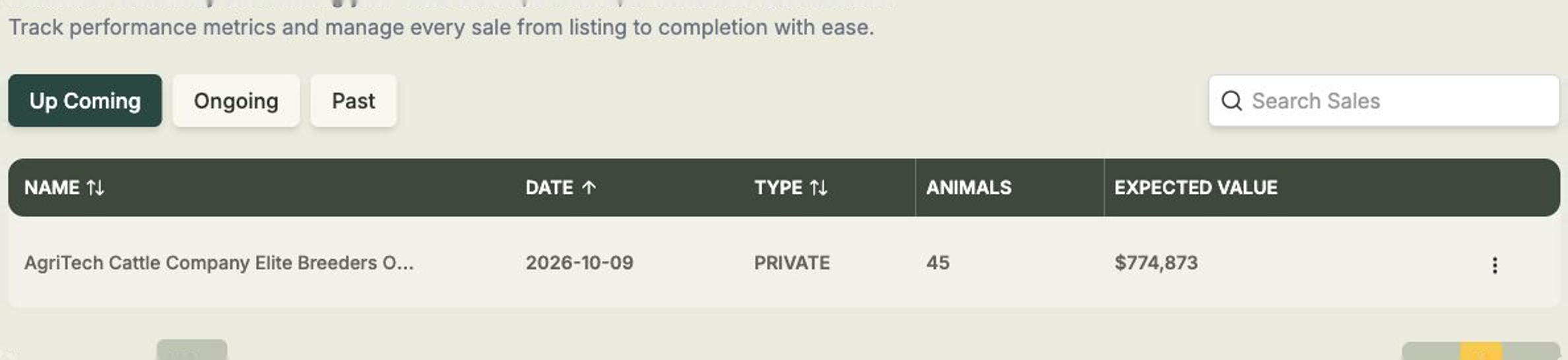
You'll find all your sales on the Sales page, split into Up Coming, Ongoing, and Past tabs so you can quickly see what's next and look back on what's done.
After your lots are ready, use Start Event to move the sale from setup into results mode. You must start the event before you can mark animals as sold from the sale results table. Once the event is ongoing, you can record sold animals one by one or use Upload Sold Animals to bulk upload buyers and sold prices from a spreadsheet.
Remember to publish
Changes you make to a sale — adding lots, reordering them, editing what buyers see — aren't live on the public page until you select Publish Changes. The button tells you when there are unpublished changes waiting.