

Appearance
Adding & arranging sale lots
The animals in your sale are called lots. They come straight from your animal records, so there's no need to re-enter anything. Open your sale and stay on the Animals tab to manage them.
Add animals to the sale
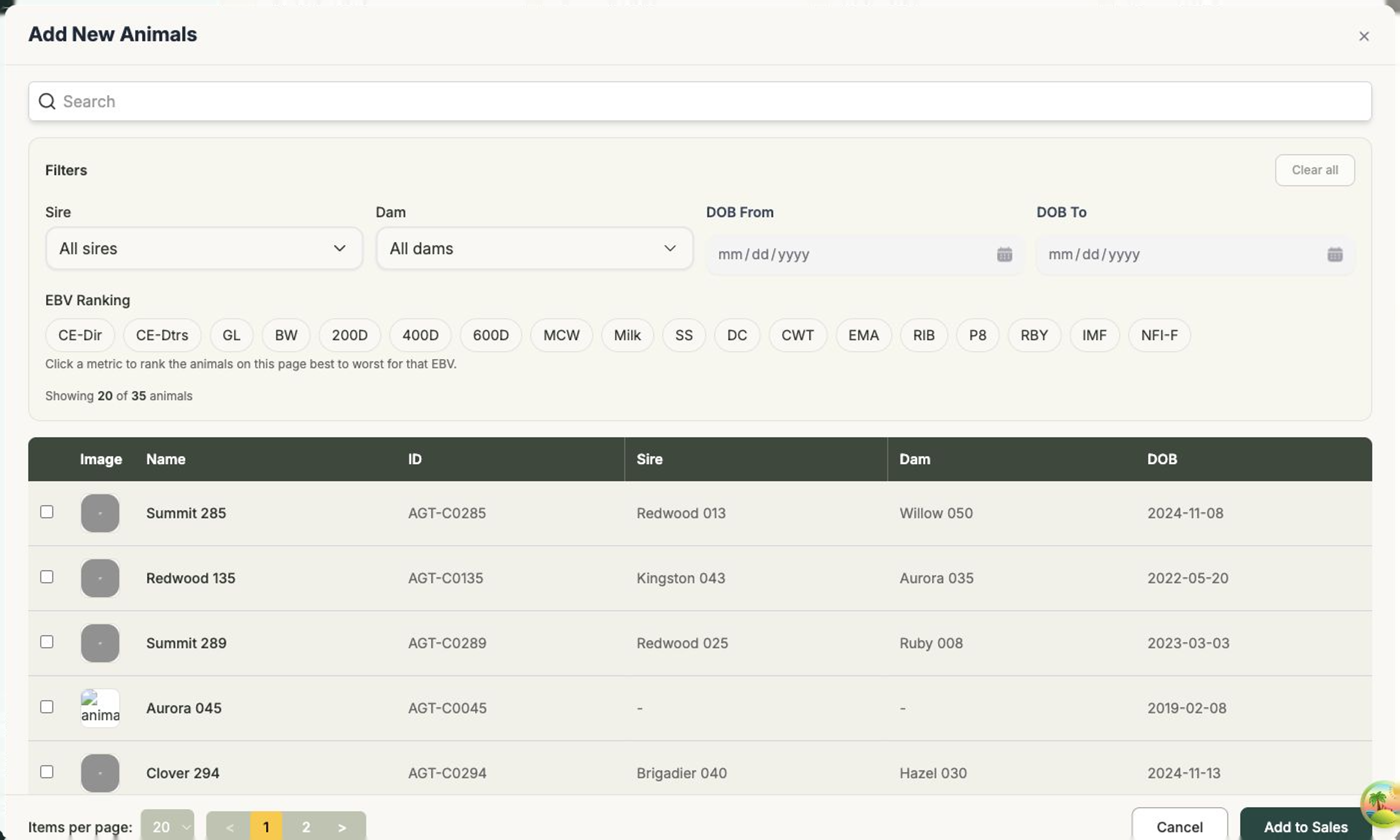
- On the Animals tab, select + Add New Animals.
- In the Add New Animals window, narrow the list using Search and the filters — Sire, Dam, DOB From and DOB To. Clear all resets them.
- To find your standout animals, select an EBV Ranking metric (such as 200D, 400D, or 600D) to rank the animals on the page best to worst on that trait.
- Tick the animals you want to include.
- Select Add to Sales to add them as lots.
The picker lists every active animal that hasn't been sold and isn't already in this sale. An animal that's also for sale somewhere else shows Also in: and the other sale's name under it — see Offer an animal in more than one sale.
Adding lots in bulk
Have a long list? Use Upload Animals to add lots from a spreadsheet in one go, instead of picking them one at a time.
Update lots with another upload
Use Upload Animals again to add information to lots already in the sale. Frisbee matches each row by Animal ID (animid), so you can reuse your original spreadsheet, fill in the youtube_link column when your videos are ready, and upload it to the same sale.
The lot number decides whether a row adds an animal. Fill it in and the row will add the animal to the sale if it is not there already. Leave the cell empty — or leave the lot column out of the spreadsheet — and the row can only update an animal that is already a lot. That is how you send videos and prices for your existing lots without adding anything new.
- Animals already in the sale keep their current running order, even if you have rearranged them since the first upload. The lot number in your spreadsheet is ignored for them.
- Filled optional cells update the saved YouTube link, expected value, mature weight, mature weight date, or scrotal size. Blank optional cells leave saved values unchanged.
- Comments add animal notes. Repeating an identical comment does not add another copy.
- A row with a lot number for an animal not yet in the sale adds it as a new lot, provided the animal is active and not already sold. An animal listed in another live sale can be added here too. Adding a lot at a number already in use shifts the following lots down one.
- A row with no lot number for an animal that is not in the sale is reported back to you and changes nothing — add a lot number if you meant to include it.
- If you removed an animal from this sale earlier and your spreadsheet still gives it a lot number, it is added back and you get a warning saying so, because that shifts the lots after it. Clear its lot cell if you want it left out.
- A lot you have withdrawn from this sale is reported back to you instead of being updated. Reinstate it first, then upload again.
Select Publish Changes afterwards to show the updates on your public sale page.
Arrange your lots
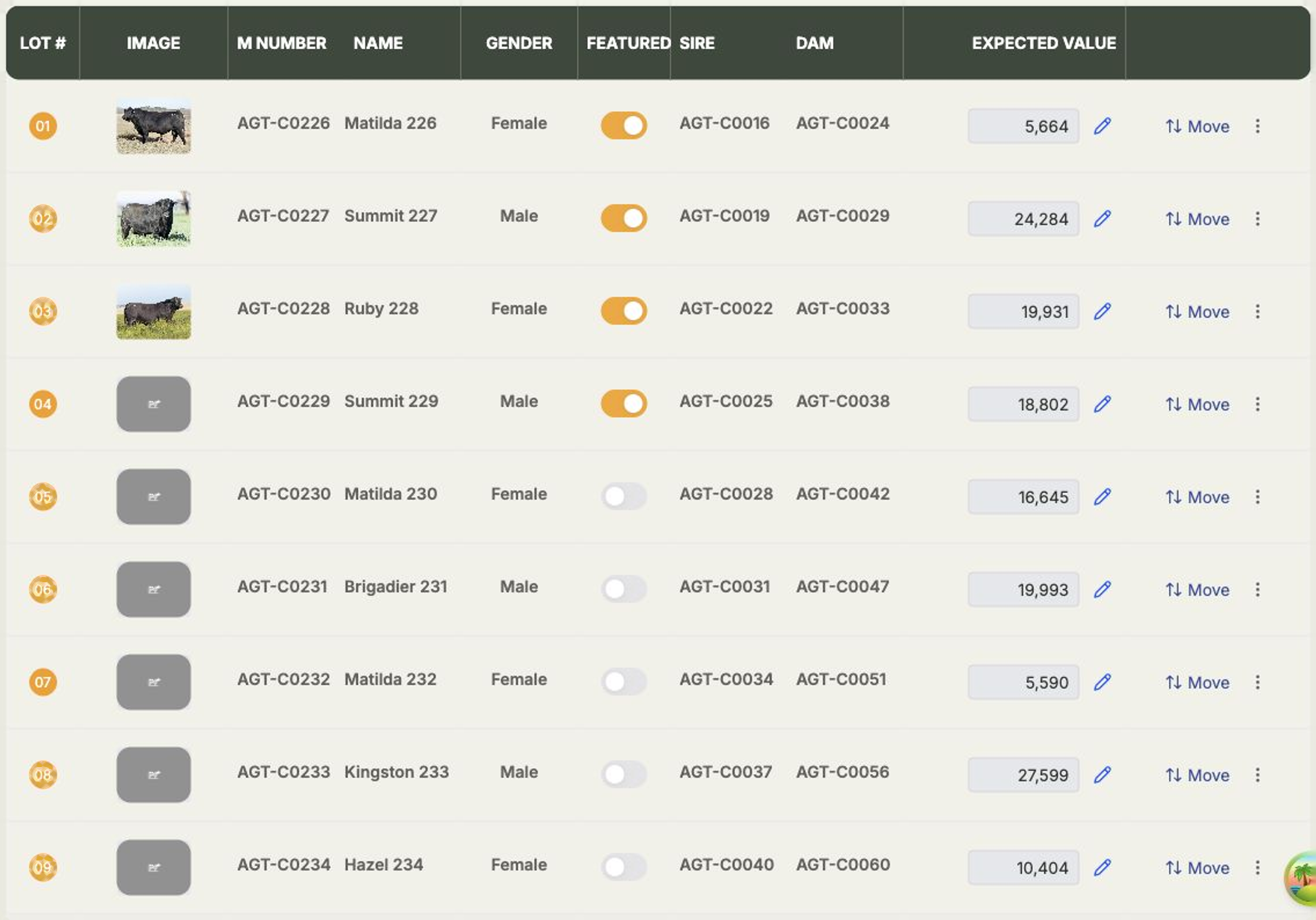
Each animal in the sale gets a lot number. To change the running order, drag a lot up or down — the lot numbers update automatically as you go. To jump a lot straight to one end, select Move on its row and choose Move to top or Move to bottom.
In the lot table you can also:
- Set the expected value — select the pencil beside a lot's expected value to change it.
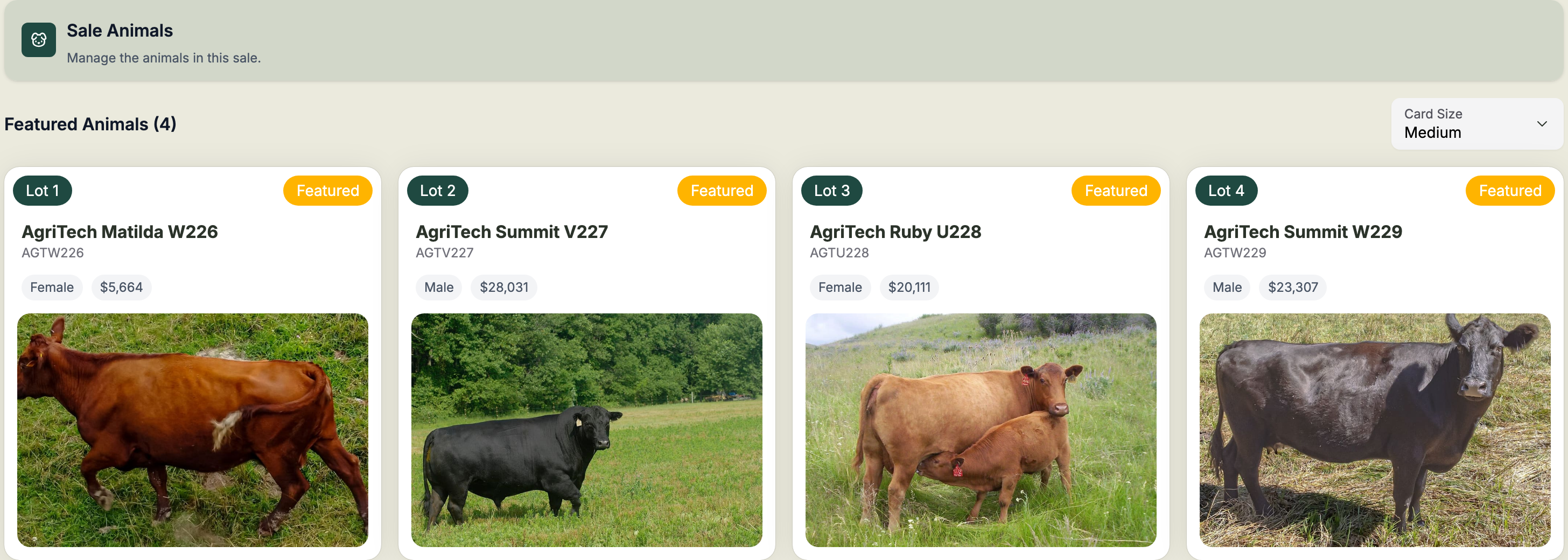
- Feature an animal — switch on Featured to highlight a lot. Featured animals appear as cards under Featured Animals at the top of the tab, and at the top of your public page.
Sell animals as a group
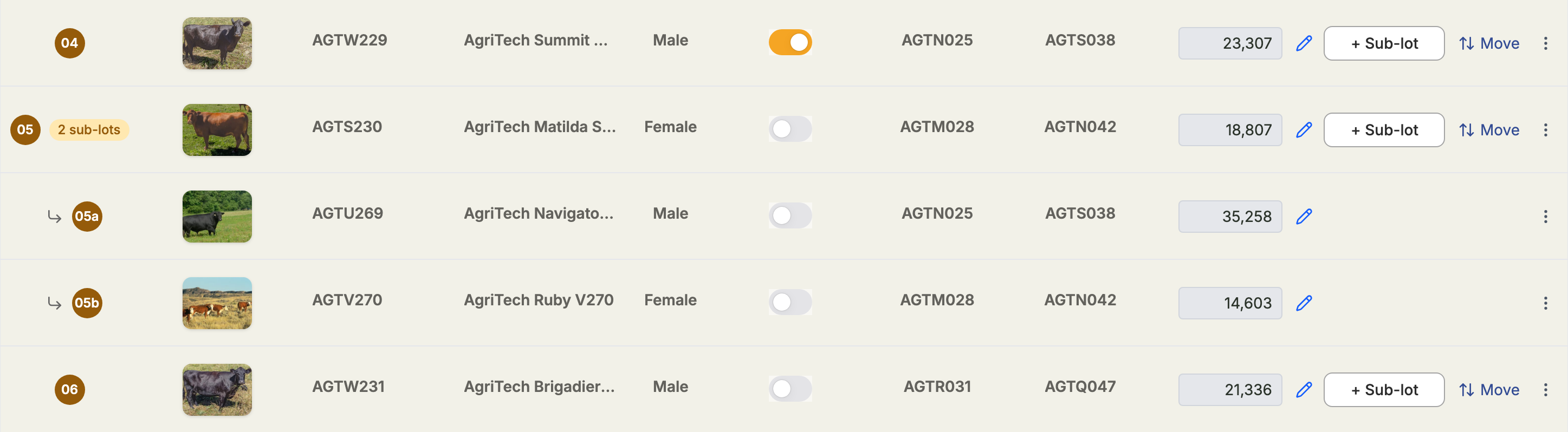
Some lots go through the ring together — a cow with her calf at foot, a pen of three rams, a flush of embryos. The auctioneer calls them under the one number with a letter after it — 33, 33a, 33b — and in Frisbee those extra animals are sub-lots.
A sub-lot is a full lot in its own right. It has its own photo, expected value, buyer and price, and it can be sold, withdrawn, featured and enquired about like any other lot. The number is the only thing it shares with the rest of its group.
Add sub-lots to a lot
- Find the lot you want to build the group around and select + Sub-lot on its row.
- Pick the animals the same way you do when adding lots — the same filters, ranking and search.
- Select Add Sub-Lots.
New animals join the end of the group and take the next letters. The base lot's row then shows a 2 sub-lots chip, so you can see at a glance which of your lots are groups.
You can add sub-lots while the sale is Up Coming or Ongoing, but not once it has finished.
Arrange a group
Dragging works as it does for any lot, with one rule: a sub-lot moves within its own group. Drag it up or down among the others to change its letter. Drag the base lot — the one with the plain number — and the whole group travels with it, letters intact.
An animal can't be dragged out of one group and into another. To move it, remove it from the group it's in and add it as a sub-lot of the other lot.
Remove one
Removing a sub-lot leaves the rest of the group alone: the others keep the letters they already have, so a catalogue you've printed or a price you've quoted by lot number still matches.
Removing the base lot removes the whole group — a sub-lot can't stay in the sale without the number it hangs off — and Frisbee tells you how many animals that is before you confirm. If any animal in the group is already Sold, the removal is refused; change that animal's status off Sold first.
Withdraw a lot
Sometimes you need to pull an animal from a sale after it's catalogued — a vendor changes their mind, an animal goes lame, or it fails a vet check. Withdrawing a lot takes it out of contention without deleting it: the lot keeps its number and stays in the catalogue, clearly marked as withdrawn, so the running order around it doesn't shift.
Open the lot's options menu — the ⋮ at the right-hand end of the row — and choose Withdraw, then confirm. You can withdraw a lot while the sale is Up Coming or Ongoing, so you can pull one right up to, and during, sale day. (Once the event is ongoing, the same Withdraw action is on the lot's row in the Unsold results view.)
You can also do this straight from the animal's own record: open the animal, and while it's in a live sale the Sale panel shows a Withdraw button next to its sale event (and a Reinstate button once it's withdrawn). It's the same action — handy when you're already looking at the animal rather than the sale.
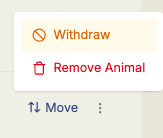
A withdrawn lot:
- keeps its lot number — the lots around it don't renumber.
- appears struck through with a "Withdrawn" badge in your lot list, and shows a Withdrawn banner on your public sale page.
- drops out of the available count buyers see, and out of your clearance rate — a withdrawn lot was never really offered, so it isn't counted as offered or unsold.
- is no longer featured — withdrawing turns off the lot's Featured toggle automatically.

A lot that's already Sold can't be withdrawn. If you need to pull a sold lot, change its status off Sold first, then withdraw it.
Changed your mind? Reinstate it
Withdrawing is reversible while the sale is Up Coming or Ongoing. Open the lot's ⋮ menu and choose Reinstate to put it straight back as a normal lot at its original position.
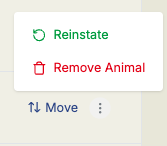
When you end the sale, you decide what happens to each withdrawn animal. Because a withdrawn animal was pulled for a reason — lame, failed a vet check, being culled — the End event dialog lists every withdrawn lot and lets you choose, per animal, whether it returns to Active (the default) or moves to Inactive. Ordinary unsold animals always return to Active as before. Animals that sold in another sale, or are still for sale in one, aren't listed: ending this sale leaves them as they are.
Withdraw vs. Remove — and what it means for the animal
Withdrawing is sale-scoped: it changes how the lot appears inside this sale, but it does not change the animal's own status. On the Animals page a withdrawn animal still reads In Sale, because it's still attached to this live sale.
Remove from sale is the permanent exit, and it's still available on a withdrawn lot. Removing takes the lot out of the sale for good: it disappears from your public catalogue straight away and the surrounding lots renumber. Reach for Withdraw when you might put the animal back; reach for Remove when it's leaving this sale for good.
Offer an animal in more than one sale
An animal that hasn't sold can be a lot in several upcoming or ongoing sales at once — say lot 12 in your Spring Sale and lot 37 in your Private Treaty listing. Add it to each sale in the usual way.
An animal can only be sold once. When you record its sale in one sale, Frisbee withdraws it from the others straight away:
- The other lots keep their numbers, so nothing else in those sales moves.
- They show Withdrawn — sold in and the sale's name in your lot list, and the Withdrawn badge on your public pages, which are republished for you.
- Frisbee confirms it: "Sale recorded. A123 withdrawn from Private Treaty."
If the other sale's public page can't be updated there and then, that sale shows Publish Changes so you can publish it yourself.
Undoing the sale doesn't put the animal back in the other sales — you decide which ones it returns to. While the animal still has a sale recorded, Reinstate is refused; clear the sale first. Sales that have already ended are never changed.
Choose how lot cards look
Use Card Size above your featured animals — Small, Medium, or Large — to change how the lot cards appear on your public sale page. Pick the size that best suits how many animals you're selling and how much detail you want buyers to see at a glance.
Publish your changes
Adding lots, reordering them, or changing the card size won't show on the public page until you select Publish Changes. The button lets you know when there are unpublished changes waiting.
When the sale starts
When your catalogue is ready, open the ⋮ menu in the sale header and choose Start Event. Starting the event moves it from Up Coming to Ongoing and changes the Animals tab from lot setup to sale results.
You need to start the event before you can mark animals as sold from the sale results table. Once the event is ongoing, you can record sold animals one by one or select Upload Sold Animals to bulk upload the animals, clients and sold prices from a spreadsheet.