

Appearance
Marketing
Marketing in Frisbee is all about reaching your buyers by email — sale invitations, save-the-dates, catalogue launches, newsletters and farm updates. You build each email with a step-by-step wizard, choose who receives it, and send it now or schedule it for later.
Open Marketing from the left-hand menu to see your campaigns.
In this section
- Creating an email campaign — build, style and send an email to your buyers, step by step.
How campaigns work
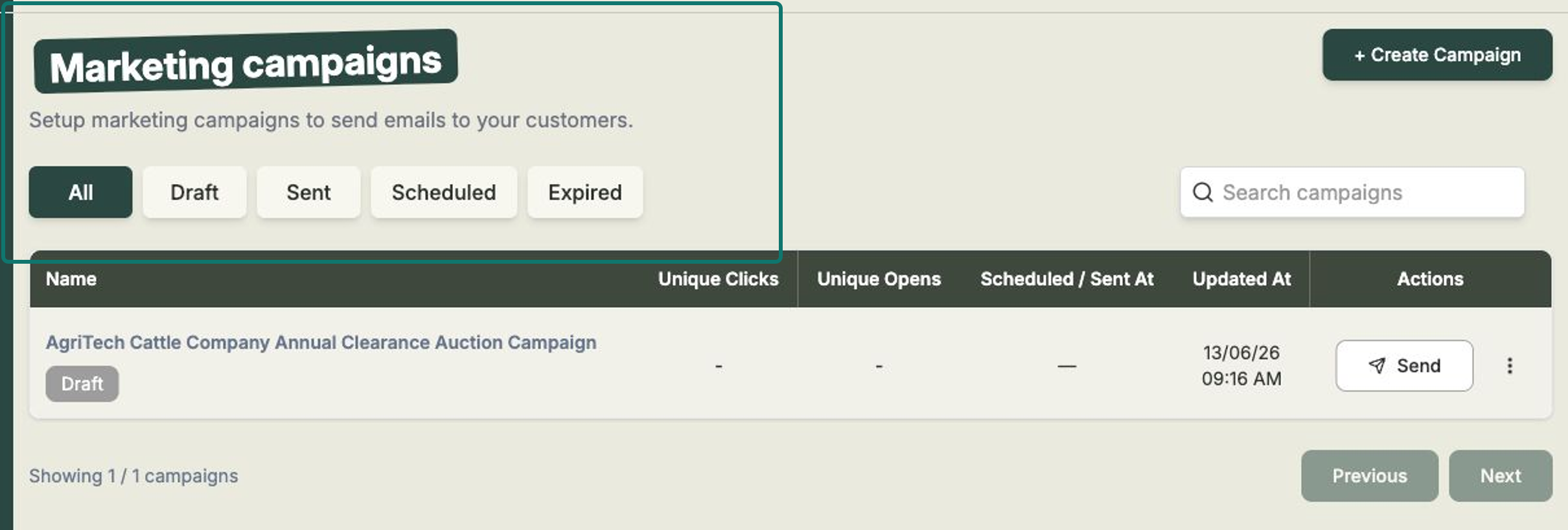
Every email you send is a campaign. Your campaigns are listed on the Marketing page, where you can keep an eye on each one. The status tabs let you filter by All, Draft, Sent, Scheduled and Expired, and you can search by name.
Each row shows the campaign Name, its Unique Opens and Unique Clicks, when it was Scheduled / Sent, and when it was last Updated. Once a campaign has been sent, open it to see how it performed.
A campaign that's still a Draft has a quick Send button, plus an actions menu where you can Edit it (this reopens the wizard) or Delete it.
Two kinds of email
When you start a new campaign, you choose what kind of email it is:
- Tied to a sale event — perfect for catalogues, RSVPs, save-the-dates and results. These emails automatically pull in your live lot details, featured animals and a countdown to the sale.
- General email — ideal for a newsletter, farm update or announcement, with a free layout you can shape however you like.
Who receives it
Your recipients come straight from your Clients. You can send to All Active Clients, or pick specific client groups using the same tags you set up under Clients. Organising your clients with tags first makes it easy to send the right email to the right people.
Drafts save as you go
Your campaign auto-saves as a draft while you edit, so you can step away and pick up where you left off. Nothing is sent until you choose Send campaign.