

Appearance
Organising clients with tags
Tags are labels you create to group your clients however makes sense for your operation — by breed interest, buyer type, or anything else. Once clients are tagged you can filter your list and target them in marketing campaigns.
Open Clients from the left-hand menu.
Create and manage your tags
- Select Manage Client Tags to open the Client Tag Manager.
- Type a name under Create New Client Tag and select Add.
- To change or remove an existing tag, select Edit or Delete next to it in the list.
- Select Close when you're done.
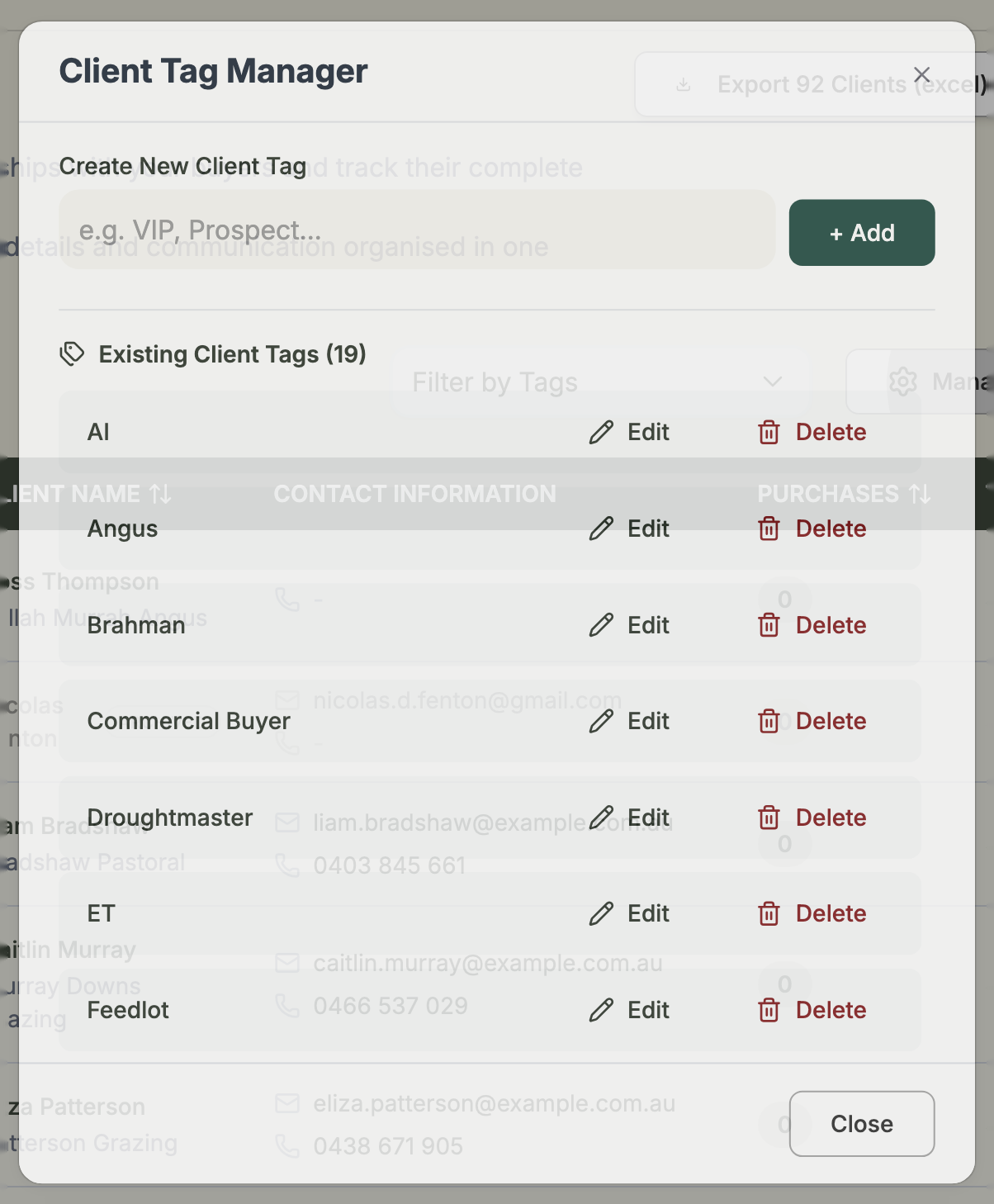
Tags are entirely yours to define. You might use them for breeds (Angus, Hereford, Merino), buyer types (Stud, Commercial Buyer, Repeat Buyer, High Value), or activities (Newsletter, Sale Invite, Field Day).
Tag a client
Open a client's record and select Add a tag in the Tags section. To remove a tag, select the × on its chip. You can also add tags in bulk when you import clients from a spreadsheet — any tag that doesn't exist yet is created automatically.
Filter your list by tag
Select Filter by Tags above the client list, then pick one or more tag chips. Your list narrows to clients carrying those tags — useful for finding everyone interested in a particular breed, or every repeat buyer.
Tags power your marketing
Tags are how you target the right buyers in an email campaign. Group your clients here first, then reach them from Marketing.