

Appearance
The client record
A client's record is their full profile — contact details, tags, every animal they've bought, your notes, and a running summary of their value to your business.
Open Clients from the left-hand menu, then select a client's name or ID to open their record.
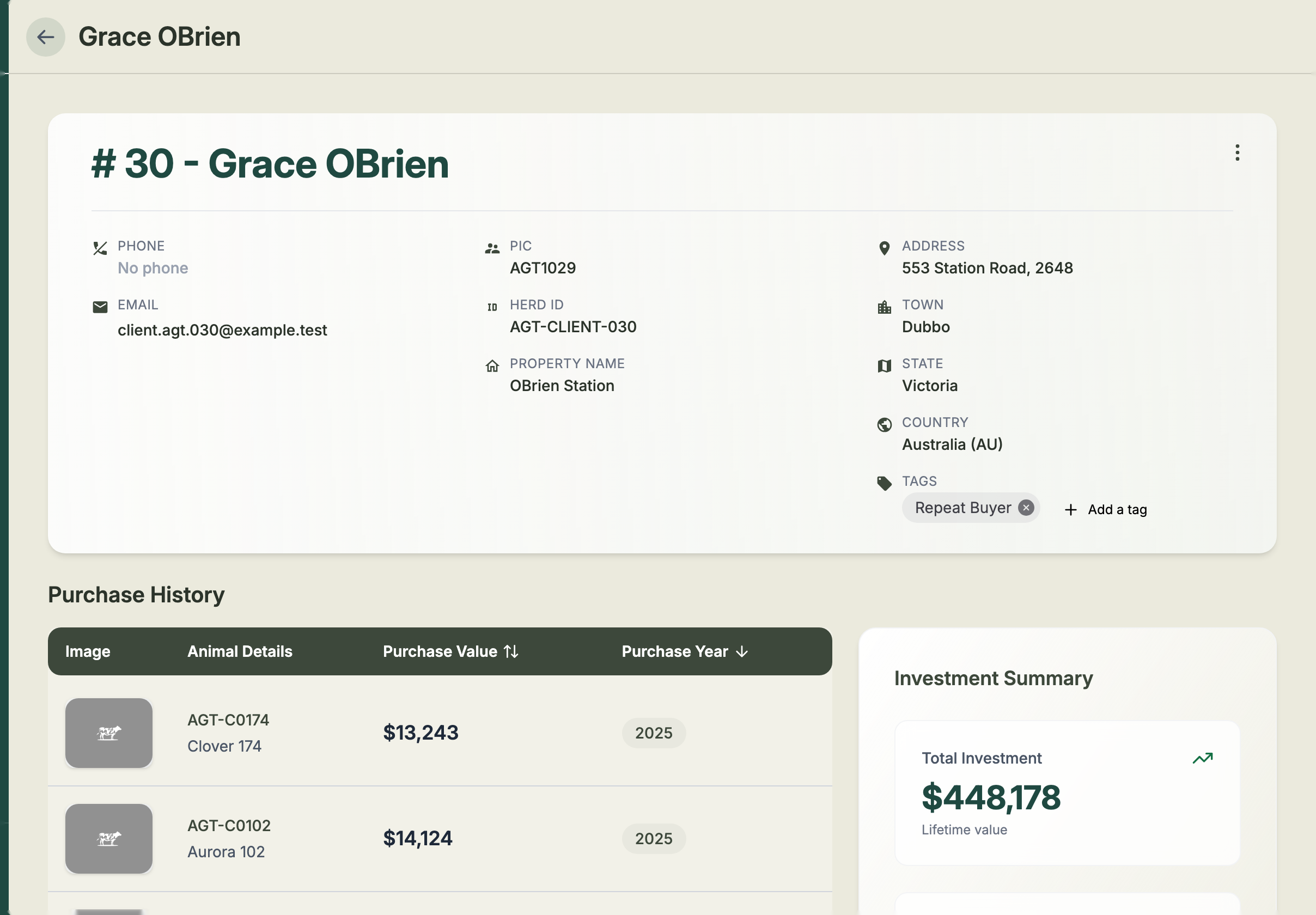
What's on the record
- Contact details — phone, email, PIC, Herd ID, property name, address, town, state and country.
- Tags — the labels applied to this client. Select Add a tag to add one, or the × on a chip to remove it. See Organising clients with tags.
- Purchase History — every animal this client has bought, with a photo, the animal's details, the purchase value and the year. The animal details link straight to the animal's record. You can sort and page through the list.
- Notes — select New Note to jot down a conversation or follow-up. Each note is timestamped so you've got a running history.
Investment Summary
On the side of the record you'll find a summary of the client's value:
- Total Investment — their lifetime spend with you.
- Total Purchases — how many animals they've bought.
- Client Since — when they first became a client.
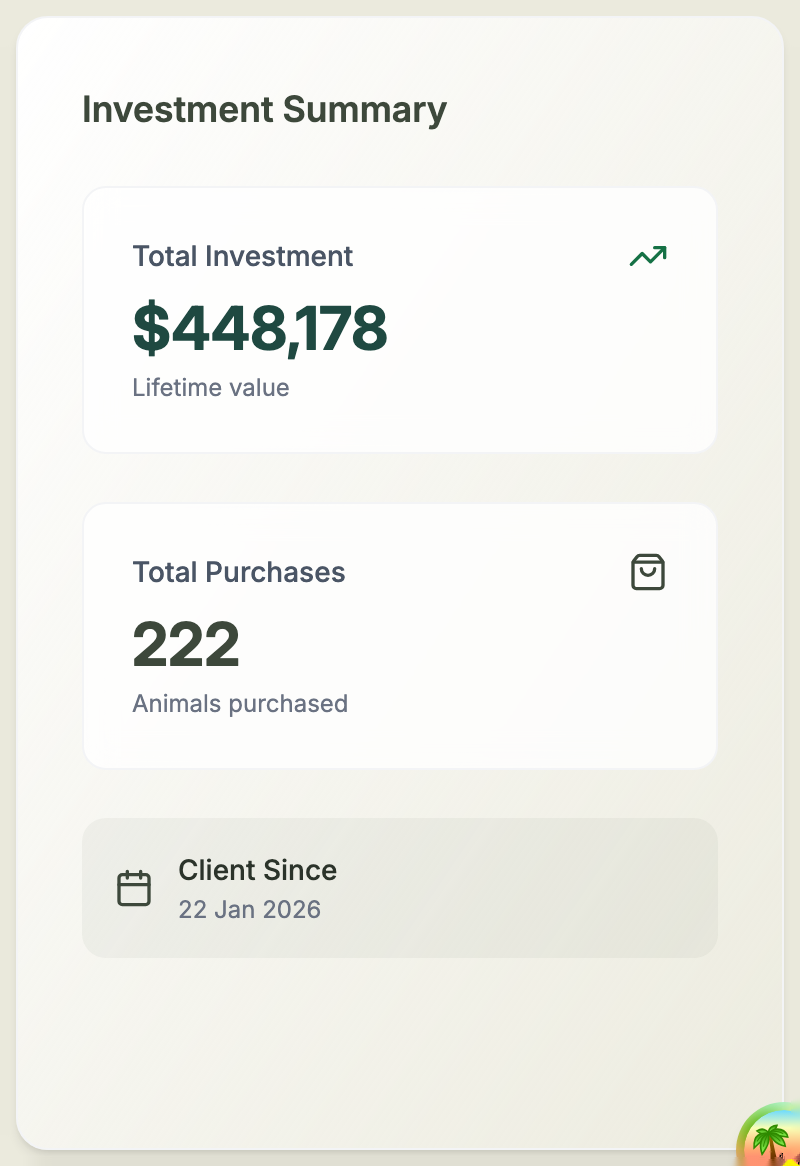
These figures update automatically as you record sales — and they include any past history you seeded when you first added the client.
Editing or archiving a client
Use the actions menu on the record (or the one on each row of the client list) to Edit Client or Archive Client. Archiving keeps the client's history but removes them from your active list.