

Appearance
Importing & exporting clients
If you already keep your buyers in a spreadsheet, you can bring them all into Frisbee at once. You can also download your full client list any time.
Open Clients from the left-hand menu.
Import clients from a spreadsheet
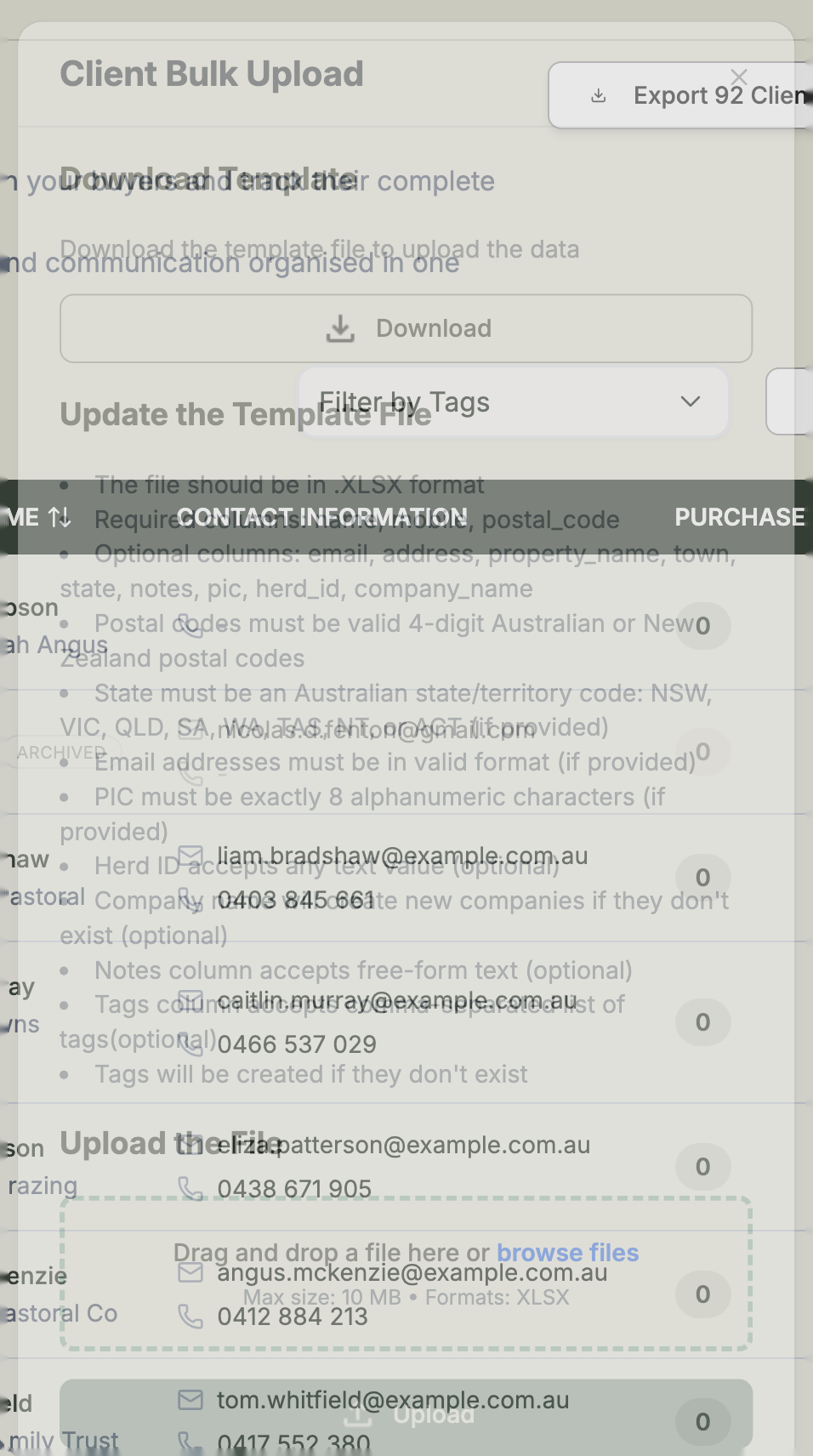
- Select Upload Clients.
- Select Download Template to get the spreadsheet (an Excel
.xlsxfile) set up with the right columns. - Fill in one row per client. Three columns are required: name, mobile and postal_code.
- Add any optional details you have: email, address, property_name, town, state, country, notes, pic, herd_id, company_name and tags.
- Save the file, then drag and drop it (or browse to it) in the upload box.
- Select Upload the File.
Getting your spreadsheet right
A few rules to avoid errors when you upload:
- Postal codes must be valid 4-digit Australian or New Zealand codes.
- Country accepts Australia, New Zealand, AU, or NZ. Leave it blank to use the farm's country.
- State must be one of NSW, VIC, QLD, SA, WA, TAS, NT or ACT.
- Email must be a valid email address.
- PIC must be exactly 8 characters (letters and numbers).
- company_name creates a new company if it doesn't already exist.
- tags are comma-separated, and any tag that doesn't already exist is created for you.
File limits
Uploads must be Excel .xlsx files and under 10 MB. Use the downloaded template as your starting point — it already has the columns named correctly.
Export your client list
To download everyone in your list as an Excel file, select Export Clients (excel) at the top of the Clients page. This is handy for backups, reporting, or sharing your buyer list outside Frisbee.