

Appearance
Reviewing & converting inquiries
Open Inquiries from the left-hand menu to review the enquiries buyers have sent you and turn the promising ones into clients.
Review an inquiry
- Open Inquiries from the left-hand menu.
- Use the status tabs — All, Pending, Approved or Rejected — to filter the list. New inquiries start under Pending.
- Select a buyer's name to open the full inquiry.
- Read the Contact Details and the buyer's Message. If the enquiry matches someone you already have, a Linked Client is shown so you know it's an existing buyer.
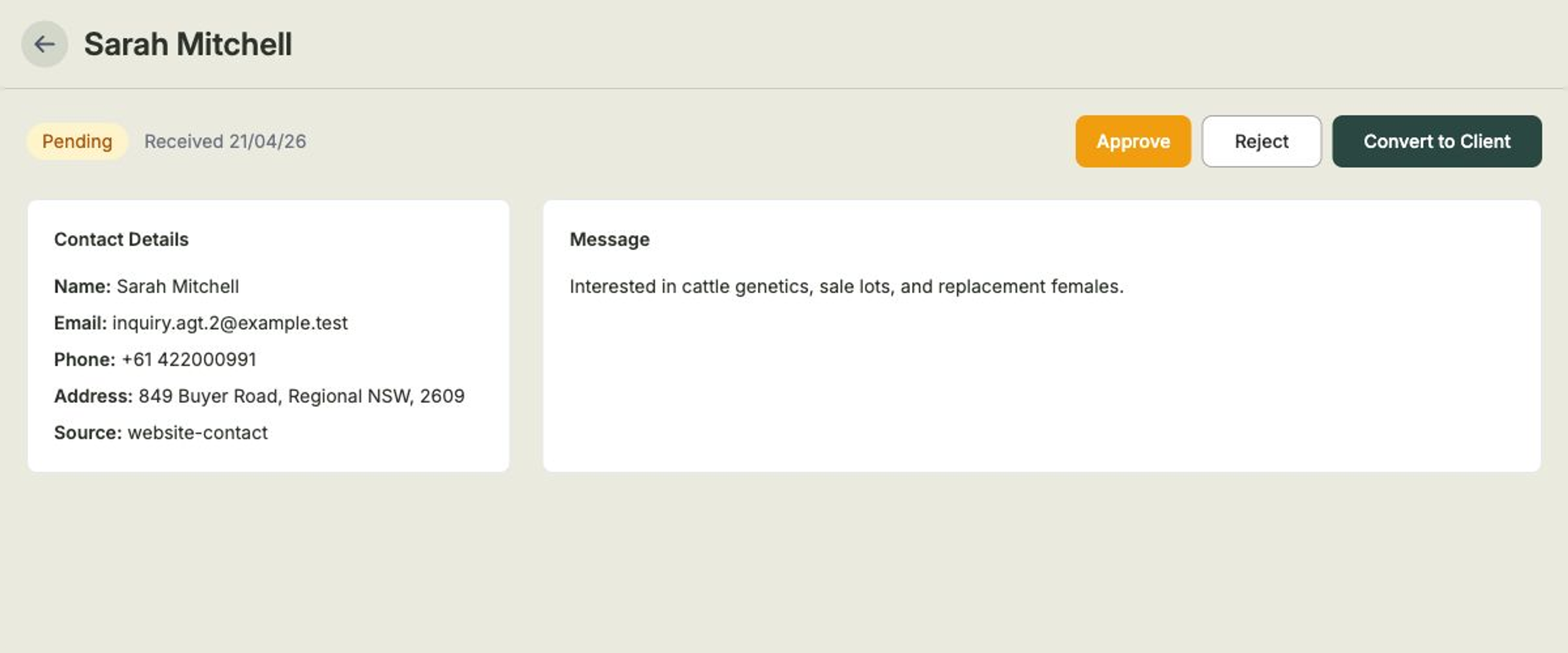
Approve or reject
Once you've read an inquiry, decide whether it's one to follow up:
- Open the inquiry.
- Select Approve for buyers you're interested in, or Reject for ones you're not pursuing.
- The inquiry's Status updates, and you'll find it under the matching tab next time you visit.
Approving doesn't create a client
Approve simply marks an inquiry as one worth following up. To add the buyer to your Clients list, use Convert to Client — see below.
Convert an inquiry into a client
When you're ready to follow up properly, turn the inquiry into a client record:
- Open the inquiry.
- Select Convert to Client.
- The buyer joins your Clients list, where you can track their contact details and purchase history alongside everyone else.
If the inquiry already matches a buyer you have, you'll see their Linked Client on the inquiry — there's no need to create a duplicate.
Where inquiries come from
The Source on each inquiry tells you how the buyer reached you — for example a sale landing page, your website contact form, a field-day form, or the public inquiry API used by embedded forms. To set up an embedded form on your own website, see API keys.