

Appearance
Managing your team
Invite the people who help run your farm and decide what each of them can do. Everyone gets their own sign-in, so you can work together without sharing a password.
Open Settings from the left-hand menu, then choose Users.
Add someone to your team
- Select Add New User.
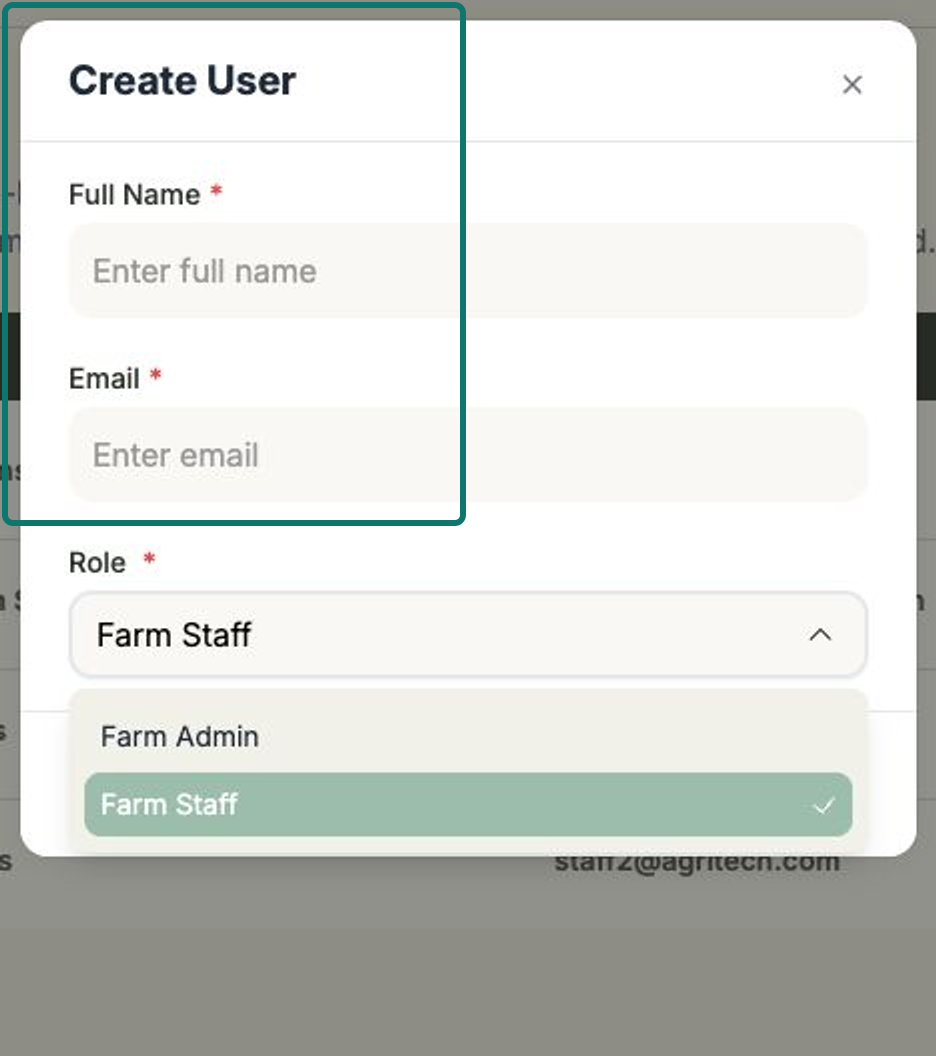
- In the Create User form, enter their Full Name and Email.
- Choose a Role:
- Farm Admin — full access, including settings like your farm profile, custom fields, EBV display and API keys.
- Farm Staff — day-to-day access with a smaller set of settings.
- Select Save. Frisbee emails them an invitation to set up their own login.
See and manage your team
Your team is listed in a table showing each person's Name, Email, Role and Status (for example, Active). Your own row is marked with a You badge.
- Select Edit on any row to change someone's name or role.
- Select Delete to remove someone. You can't delete your own account, so that option only appears on other people's rows.
Roles keep things safe
Give people the smallest role that lets them do their job. Farm staff can get on with the day-to-day without being able to change your farm-wide settings — and you can always promote someone to Farm Admin later by editing their role.
Team size counts towards your plan
Each person on your team uses one of your Users quota. If you've reached your limit, you'll need to remove someone or move to a plan with more seats — see Usage & quotas.
Related
- Usage & quotas — check how many user seats your plan includes.
- Choosing & changing your plan — get more seats if you need them.
- Farm profile — keep your farm's details up to date.