
Appearance
Farm profile
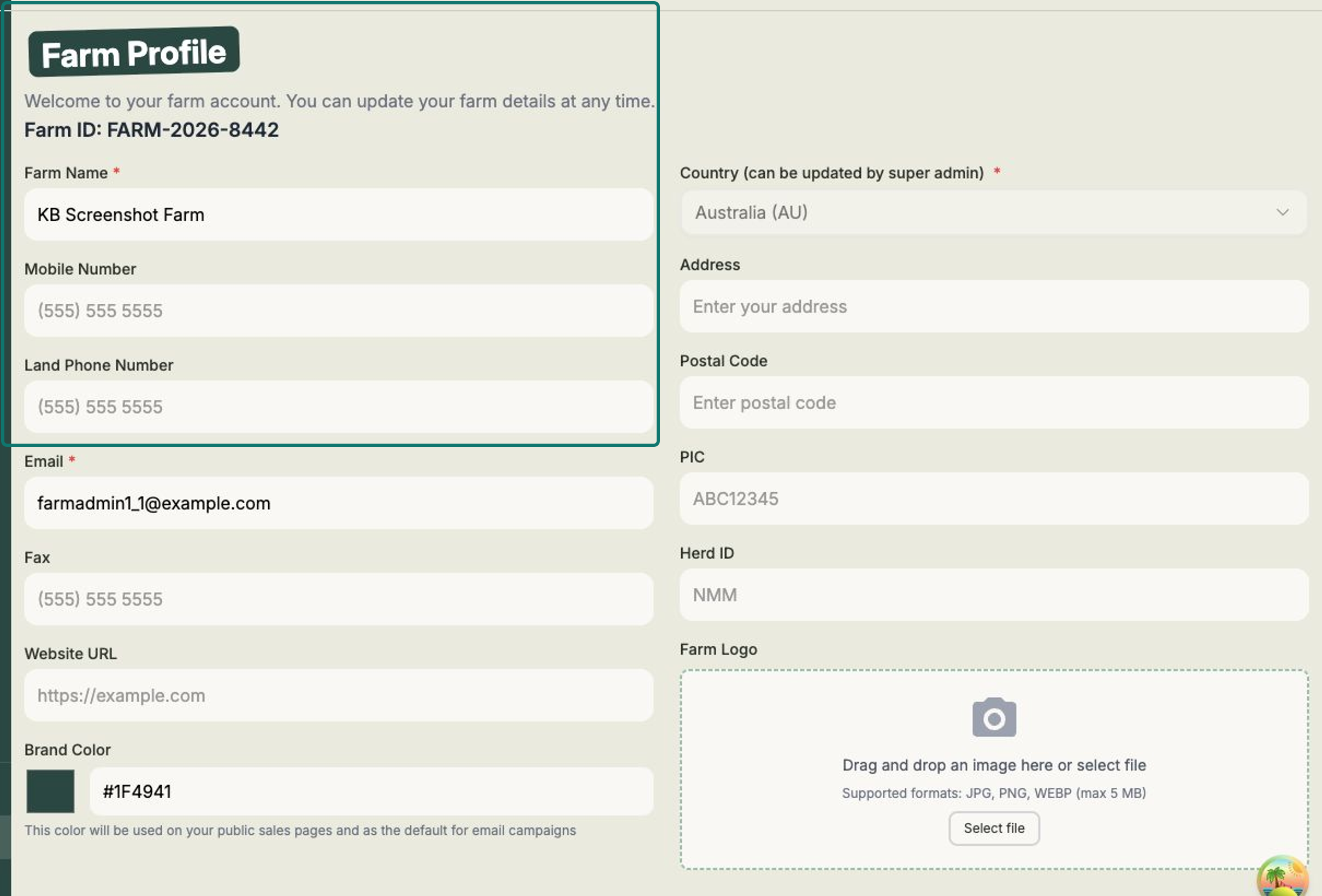
Your Farm profile holds your farm's name, contact details, brand colour and logo. It's worth filling in early — your brand colour and logo carry through to your public sale pages and email campaigns.
Open Settings from the left-hand menu, then choose Farm Profile.
Steps
- Update your Farm Name (required) and your contact details — Mobile Number, Land Phone Number, Email (required), Fax and Website URL.
- Set your Brand Color. This colour is used on your public sale pages and as the default for your email campaigns. The Frisbee green is there by default — change it to match your own brand.
- Add your Address, Postal Code, PIC and Herd ID so they're on hand when you need them.
- Upload your Farm Logo — select Choose File to add one, or Change / Remove to swap or clear it.
- Select Save Changes.
A couple of things to know:
- Your Farm ID (something like FARM-2026-8442) is set for you and can't be edited — it's your account's unique reference.
- Your Country (Australia or New Zealand) is shown here too. If it needs changing, get in touch with support and they'll sort it out for you.
Make it yours
Your Brand Color and Farm Logo are what buyers see first on your public sale page and in your email campaigns. Setting them once here means everything stays on-brand without any extra work later.
Related
- EBV display — control which traits appear on your public sale pages.
- Your public sale page — see where your brand colour and logo show up.
- Creating an email campaign — your brand colour is the default here too.
- Managing your team — invite the people who help run your farm.