

Appearance
Finding your way around
Everything in Frisbee is reached from the menu on the left-hand side. Here's a quick map so you always know where to look.
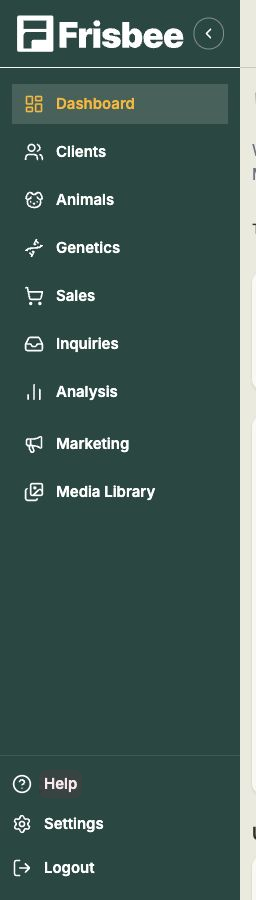
The left-hand menu
From the top, you'll find:
- Dashboard — your home page and overview.
- Clients — your buyers and their contact details.
- Animals — a record for every animal in your herd.
- Genetics — your genetics products, such as semen and embryos.
- Sales — your sale events and public sale pages.
- Inquiries — questions and interest from buyers.
- Analysis — expands to Sire-Dam and Sales Map for a deeper look at your herd and your buyers.
- Marketing — email campaigns to reach your buyers.
- Media Library — your photos, videos and documents.
At the bottom you'll find Help, Settings and Logout. The whole menu collapses if you'd like more room on screen.
Settings expands to Farm Profile, Custom Fields, EBV Display, API Keys, Usage and Users — see Settings.
Take a guided tour
New to Frisbee? The tour is the quickest way to learn the layout.
- Select Help at the bottom-left of the menu.
- Choose Take a Tour.
- Follow the highlights — the tour points out Quick Search, your dashboard KPIs, sales over time, your best sale events, top clients, the main menu, and each section of the app.
You can replay the tour any time you like.
Explore safely with Demo Mode
Want to click around without touching your real records? Turn on Demo Mode.
- Select Help, then Turn ON Demo Mode.
- Frisbee switches to sample data so you can explore freely.
- When you're ready, turn it off — you'll be asked to confirm Exit demo mode? before switching back to your live data.
Your real data is safe in Demo Mode
Demo Mode only shows sample records. Nothing you do while it's on affects your real animals, clients or sales.
Logging out
When you're finished, select Logout at the bottom of the menu. You'll be asked to confirm before you're signed out.