

Appearance
Importing animals & EBVs
If you already keep your herd in a spreadsheet, you don't have to re-enter it by hand. You can import many animals at once, and import performance figures (EBVs) the same way.
Open Animals from the left-hand menu. The top-right has two buttons for this: Upload Animals for animal records, and Upload EBV for breeding values.
Import animals
- On the Animals page, select Upload Animals.
- In the Animal Bulk Upload window, select Download Template to get the spreadsheet to fill in.
- Enter your animals in the template, one per row. Keep every column from the template (including any custom fields), and write all dates as DD-MM-YYYY.
- Save your file as .XLSX (up to 10 MB).
- Back in the window, drag your file in or browse to it, then select Upload.
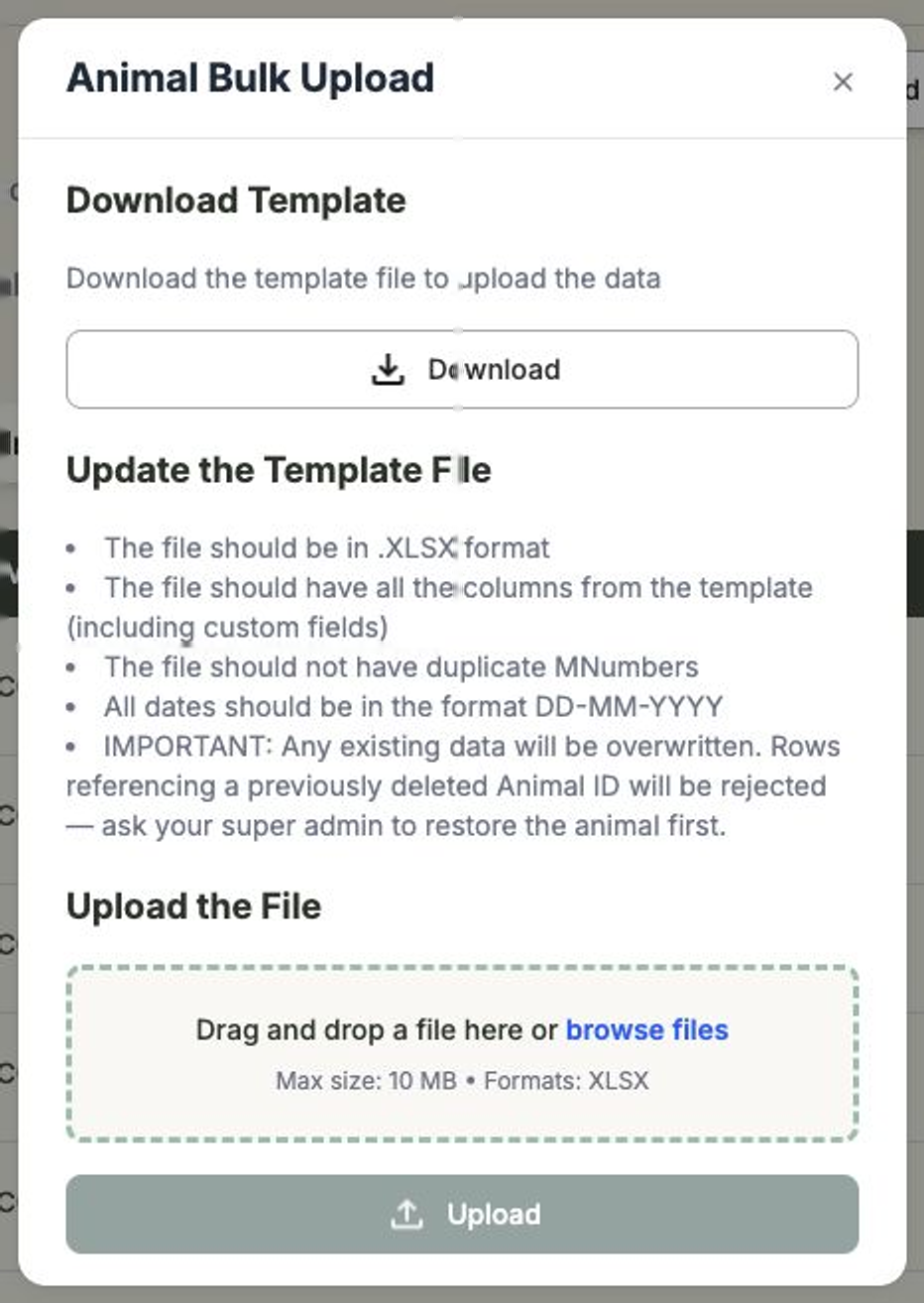
Importing overwrites existing data
Any details already on an animal will be replaced by what's in your spreadsheet, so import a complete, up-to-date file. A few rules to know:
- Don't use duplicate M Numbers in the file.
- Rows that point to an animal you previously deleted will be rejected — ask your super admin to restore that animal first.
- The template includes columns for sire, dam, grandparents and great-grandparents. Fill in a parent before the generation above it, or that cell is reported and skipped. An animal cannot be listed as its own ancestor.
Import EBVs
Estimated Breeding Values (EBVs) are imported the same way. Select Upload EBV, download that template, fill in your figures, and upload the completed .XLSX file. Your EBV data then appears on each animal's record.
Colour, tenderness score and observed traits
The animal template includes three optional observation columns for every breed, sitting just after mating_type:
| Column | What to enter |
|---|---|
tenderness_score | A whole number from 1 to 10. Anything else is reported on that row. |
colour | Free text, e.g. Black or Black with white face. |
observed_traits | Free text, e.g. Quiet temperament and good feet. |
If your own spreadsheet uses different headings, Tenderness, Color and Observed Traits are recognised too. Coat Colour is not — that heading is left for a custom field of your own. Leaving a cell blank keeps whatever is already on the animal — to clear one of these, use Edit Animal on the animal record.
Choosing which figures show
The EBV traits shown on an animal's record are controlled in Settings → EBV Display, so you can focus on the figures that matter to your herd. Extra animal fields come from Settings → Custom Fields — and those custom fields are included in the import template too.
Next steps
- The animal record — see imported animals and their figures.
- EBV display — choose which breeding values to show.
- Custom fields — add your own animal fields.