

Appearance
Sharing your sale page
Once your sale is set up, you can share its public page with buyers in a couple of clicks. Open the sale from the Sales page to get started.
Get the public link
- Open your sale from the Sales page.
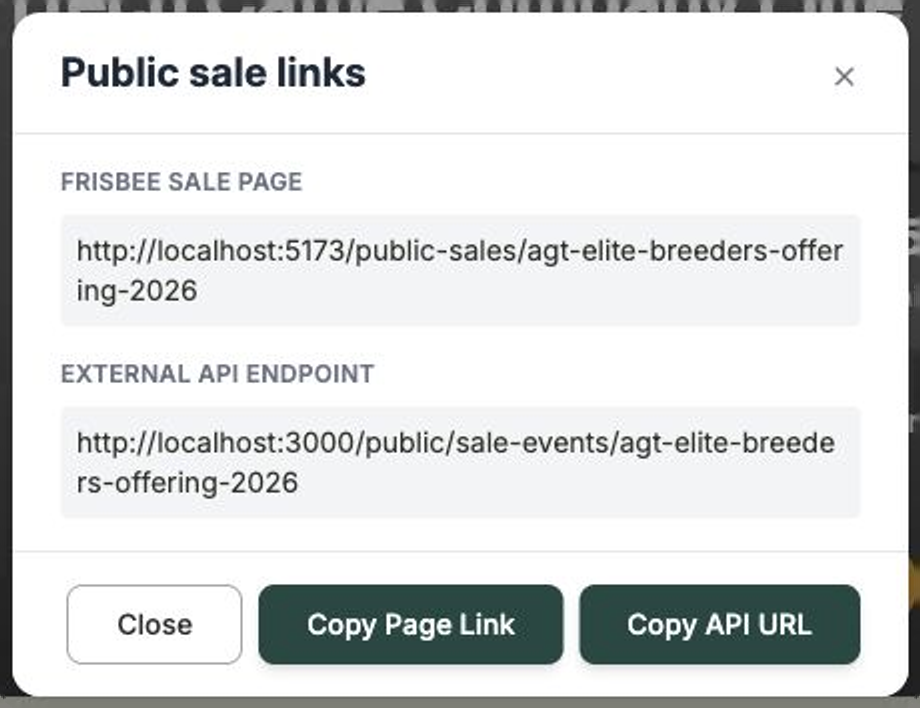
- Select Create Sharable Link.
- In the dialog, choose Copy Page Link — this is the public web address for your sale page.
- Paste it wherever your buyers will see it: an email, a text message, social media, or your own website.
View it first
Use View Sale Page to open the public page yourself and check it looks the way you want before you send the link out.
Publish your latest changes
Your public page only updates after you publish. Any time you edit the sale — add lots, change what buyers see, or post an update — those changes stay private until you push them live.
- Make your changes to the sale.
- Select Publish Changes.
- Open the public page (or use View Sale Page) to confirm your updates are showing.
Publish before you share
If buyers tell you the page looks out of date, it's almost always because recent changes haven't been published yet. Click Publish Changes and they'll appear.
Embed the catalogue on your own website
If you'd like your sale catalogue or an inquiry form to live on your own website, Frisbee can provide that too.
- Open your sale and select Create Sharable Link.
- Choose Copy API URL — this is the address your website can use to display the catalogue and collect buyer inquiries.
- Give the link to whoever manages your website so they can add it.
You'll also need an API key from your settings to connect everything. Inquiries that come in through an embedded form land in your Inquiries list, ready for you to follow up.