

Appearance
Adding a genetics product
A genetics product is a semen or embryo line you keep in stock. Adding one records its breeding details, how much you have, and what it costs — so it's ready to track and sell.
Open Genetics from the left-hand menu.
Steps
- Select Add Genetics Product in the top-right corner.
- Choose a Type — Semen or Embryo. This decides which breeding details the form asks for next.
- Fill in the shared details:
- Quantity (units) — how many units you have in stock. This one is required.
- Extracted Date — when the product was collected. This one is required too.
- Description, Price per Unit, Status, Tank Location and Grade (A+ down to 😎 — all optional, but worth filling in to keep your records complete.
- Add the breeding details for the type you chose (see below).
- Set any extra options you need — Ownership (Full or Partial, with an Ownership Note), Restrictions, and the Export Eligible toggle.
- Select Create to save the product, or Cancel to discard it.
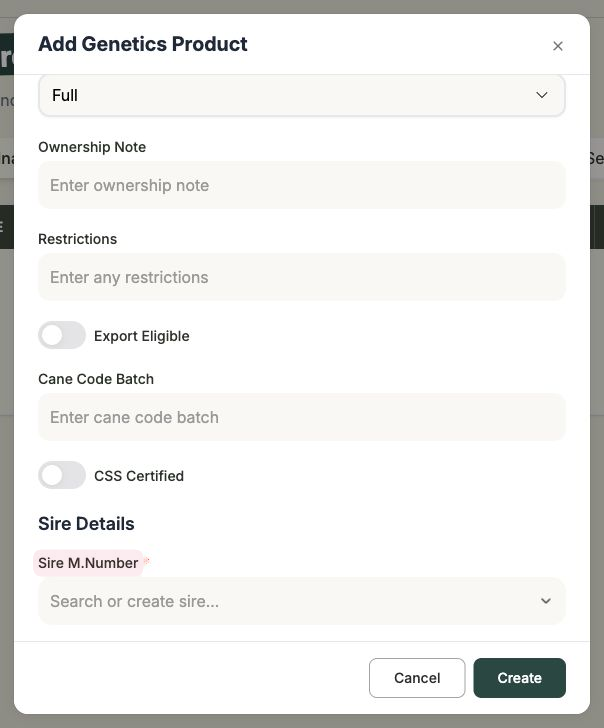
For semen
When you choose Semen, the form asks for:
- Sire Details → Sire M.Number — pick the sire from your animals. This is required.
- Cane Code Batch — your batch reference.
- CSS Certified — a toggle for certified product.
For embryos
When you choose Embryo, the form records both parents:
- Sire Details → Sire M.Number — pick the sire from your animals.
- Dam Details → Dam M.Number — pick the dam from your animals. This is required.
- Embryo Type — DT, IVF or Conventional.
- Embryo Source — where the embryo came from.
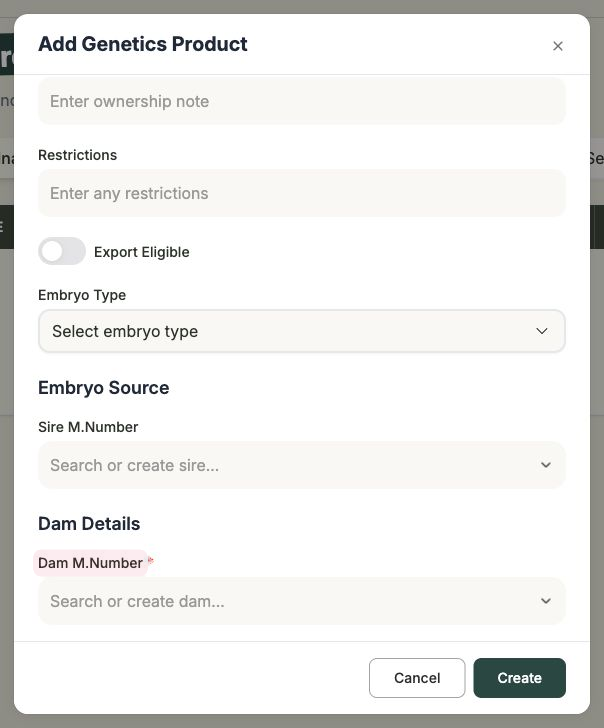
Pick a sire and dam you've already added
You choose the sire (and, for embryos, the dam) from your existing animals, so add those records first if they aren't in Frisbee yet — see Adding an animal.
Once you select Create, the product appears in your Genetics Products list, where you can edit it, set it In Sale, or mark it Sold.